
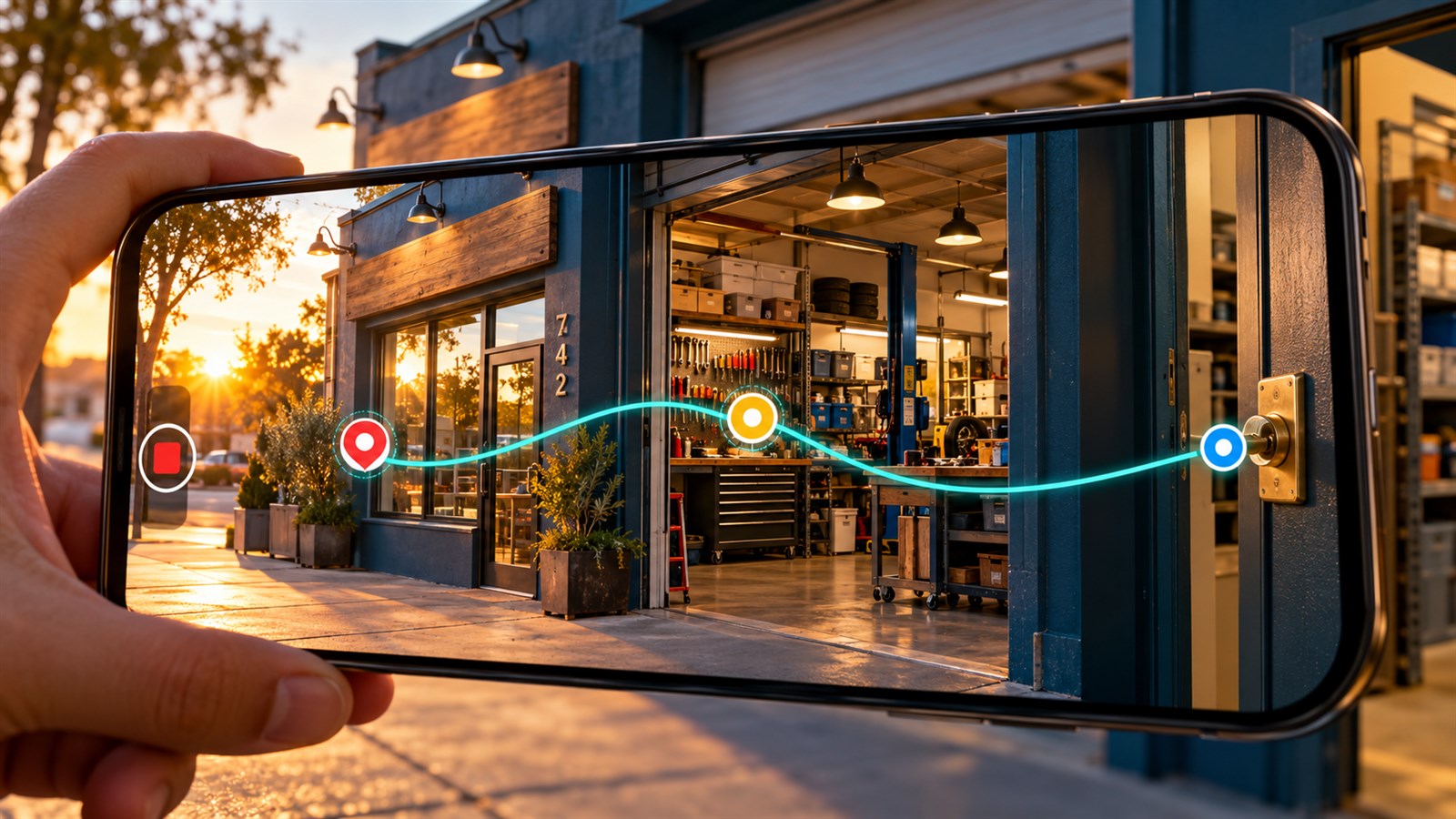
CodeForce Tech Notes
Google Business Profile Video Rejected? Film These 3 Proof Points
A rejected Google Business Profile video usually missed location, operations, or management proof. Use this one-take checklist before recording again.
A rejected Google Business Profile verification video usually means the recording did not prove one of three things clearly enough: where the business operates, whether it is a real operating business, or whether the person recording is authorized to manage it. The fix is not a cinematic commercial. It is one continuous, practical trail of evidence.
Google requires the video to be recorded live from a mobile device through the Business Profile verification flow. It must be unique, unedited, complete, at least 30 seconds long, and recorded without breaks. Before tapping “Start recording,†plan a short route that proves location, operations, and management in one take.
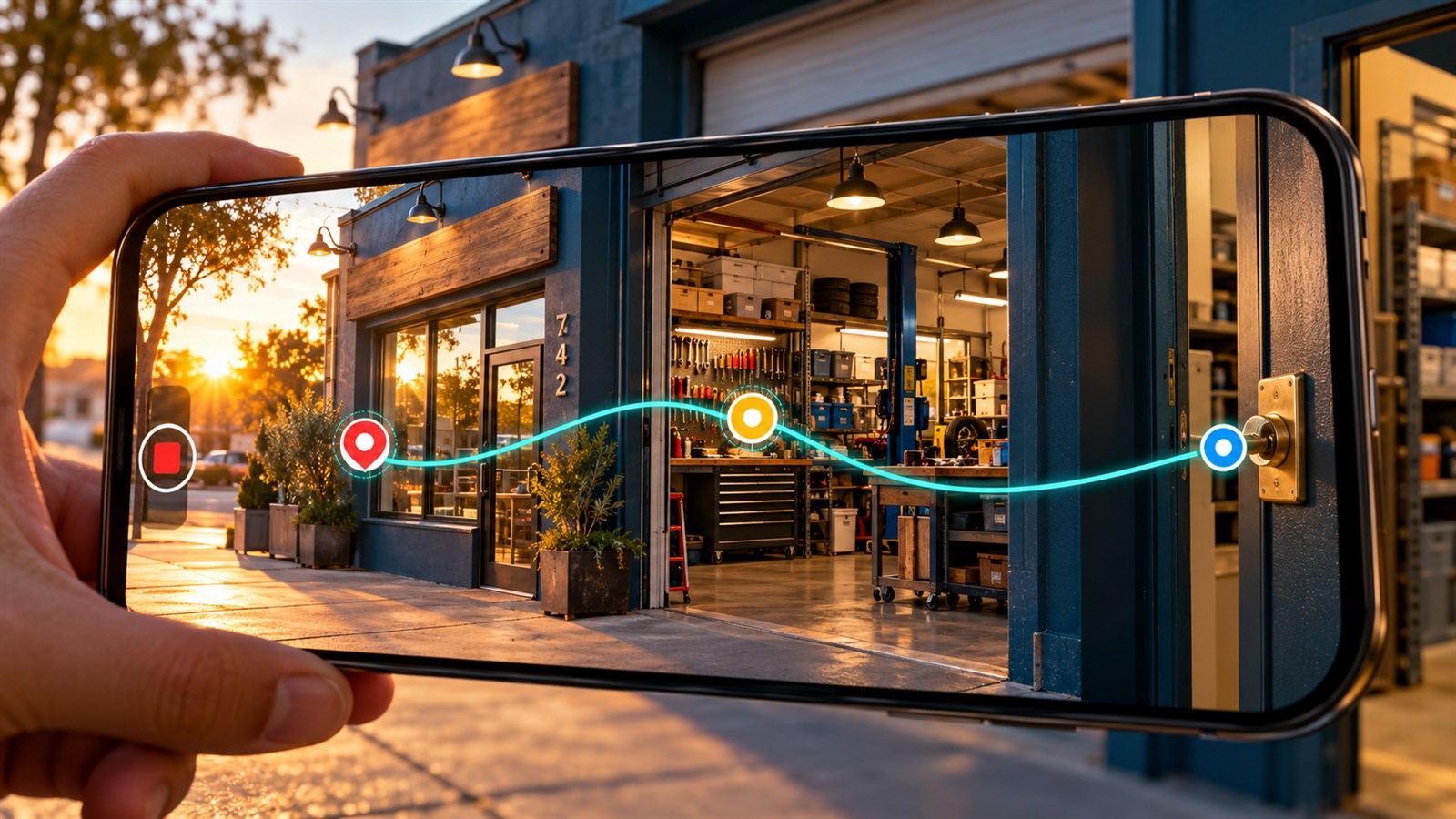
What Google is trying to verify
Video verification helps Google confirm that the business exists, operates as described, and is managed by the person requesting control of the profile. The exact evidence depends on whether the profile represents a storefront, a service-area business, or a hybrid business.
The useful way to plan is to separate the recording into three proof points:
- Location: evidence that connects the business to the place or service area listed in the profile.
- Operations: evidence that a real business performs the stated work or sells the stated products.
- Management: evidence that the recorder controls employee-only property, systems, tools, or documents.
Showing only one or two of these can leave a reviewer with an incomplete picture. A beautiful storefront tour may still fail if it never proves the recorder can access the business. A van full of plumbing tools may show the trade but not establish where the business operates.
Google Business Profile video verification rules
Google’s current instructions say the video must be:
- an unedited, unique, and complete recording with no breaks;
- at least 30 seconds long;
- recorded and uploaded from a mobile device through the Business Profile;
- captured live rather than recorded offline and uploaded later.
The video should not show bank account numbers, tax or identification numbers, private information, or other people’s faces. Plan around customers and employees before recording. If a document is useful as proof, cover sensitive details while leaving the matching business name and other relevant non-sensitive information visible.
Storefront and hybrid business checklist
A storefront serves customers at a physical location during stated business hours. A hybrid business serves customers at its location and also travels or delivers to them. Google expects permanent on-site signage for a storefront profile.
1. Begin outside and establish the location
Start with the surrounding area. Capture a street sign, building number, neighboring business, or recognizable landmark, then move toward the entrance. The goal is to connect the video to the address on the profile rather than showing an anonymous building.
Keep the movement steady enough that a reviewer can understand the route. Racing from a blurry street corner to the door may technically include the sign without making it usable evidence.
2. Show permanent business signage
Record the business name on a permanent signboard, wall, window, directory, or other fixture. The name should match the Business Profile. A temporary printed sheet taped to a door is not a substitute for a genuine storefront sign.
If the legal company name and customer-facing business name differ, make sure the profile follows Google’s naming guidelines before recording. Adding keywords, a city, or a service to the profile name simply to influence rankings can create a separate policy problem.
3. Walk into the operating business
Show the part of the location that demonstrates what the company actually does: the showroom, inventory, workshop, treatment room, kitchen, service counter, or specialized equipment. Choose evidence that matches the primary category and services on the profile.
4. End with proof of management
Record an action available only to an owner or employee, such as unlocking the entrance, opening a cash register, entering a staff area, accessing a storage room, or operating the point-of-sale system. Do not reveal passwords, customer records, card data, or security codes while doing it.
Service-area business checklist
A service-area business travels to customers and does not serve them at its address. Examples include many plumbers, electricians, cleaners, mobile detailers, and home-service contractors.
If customers do not visit the business at the listed address, Google says the address should not appear publicly on the profile. Do not build a temporary storefront presentation just for verification. Prove the real service-area business as it actually operates.
1. Establish the operating location
Begin with street signs, a building number, nearby landmarks, or other identifiers around the real business address. A home-based service business can show the immediate neighborhood without displaying private interior details that are unrelated to the work.
2. Show trade-specific tools and materials
Record the equipment, products, supplies, workspace, or vehicle used to deliver the service. Generic office furniture proves very little. A locksmith might show key-cutting equipment and a branded service vehicle; a landscaper might show professional tools and stored materials.
3. Prove authorization
Unlock a branded vehicle, access a secured equipment area, demonstrate a business-only tool, or show a permit, invoice, utility bill, or other business document that matches the profile. Keep tax IDs, account numbers, personal addresses, and customer information out of view.
A simple one-take filming plan
Write the route down before opening the verification flow. For a storefront, a practical sequence could be:
- Show the street sign and pan to the building number.
- Walk to the permanent business sign and entrance.
- Unlock the door and enter.
- Show the work area, products, or specialized equipment.
- Open an employee-only area or access the point-of-sale system without exposing private data.
- Stop and review the recording before uploading.
For a service-area business, replace the storefront portion with identifiable location evidence, then move to the vehicle, tools, workspace, and ownership proof. The recording can be longer than 30 seconds when needed. Clarity is more important than hitting the minimum as quickly as possible.
Common reasons a verification video is rejected
The business name is not visible
A reviewer sees the location but cannot connect it to the profile. For a storefront, show permanent signage clearly and long enough to read. Confirm the sign and profile use the same real-world business name.
The surrounding area is missing
The video starts inside, so there is no evidence connecting the business to the map location. Begin outside with a street sign, building number, neighboring business, or landmark.
The video shows work but not control
Tools and inventory prove that work may happen there, but not that the recorder manages the business. Add a clear employee-only action such as unlocking the facility, opening a staff area, or accessing a business system.
The video proves control but not operations
Keys and documents may show authorization, but an empty room or generic mailbox does not explain what the business does. Include real equipment, products, stock, service materials, or an active workspace.
The recording is edited or pre-recorded
Google does not accept a polished video assembled from clips. Record through the Business Profile verification process in one continuous take.
The business type is set up incorrectly
A business that does not receive customers at its address should not present itself as a storefront. An online-only business with no in-person customer contact is not eligible for a Business Profile. Correct eligibility or address-display issues rather than trying to film around them.
What to do after a rejected video
On the mobile Business Profile, tap Review issues and read the reasons Google provides. A new recording should include all useful evidence from the first attempt plus the missing proof identified in the rejection.
Google says review can take up to five business days. Avoid submitting repeated recordings before the current review finishes. If the upload itself fails, Google advises trying the upload again.
Do not confuse failed verification with a suspended profile. Verification proves the business and the manager relationship. A suspension or disabled profile involves policy enforcement and uses an appeal process. For an appeal, Google may request business registration, licenses, tax certificates, or utility bills, and the business name and address on the evidence should match the profile.
Prepare the profile before pressing record
- Confirm the business name matches permanent real-world signage and official materials.
- Confirm the address or service-area setup reflects how customers actually interact with the business.
- Choose the most accurate primary category and remove misleading extras.
- Make sure the phone, website, hours, and service details are current.
- Gather location, operations, and management proof before starting the live recording.
- Ask customers and employees to stay out of the shot so faces and private data are not captured.
CodeForce’s Google Business Profile Help explains the support process for verification, re-verification, denied profiles, and suspensions. The Google Business Rescue service can help organize evidence, review profile consistency, and plan the next step. Approval always remains Google’s decision, and the business owner or authorized representative must provide truthful evidence.
Google Business Profile video verification FAQ
Can I upload a video I recorded earlier?
No. Google requires the verification video to be recorded live from a mobile device through the Business Profile verification flow.
How long does the video need to be?
Google requires at least 30 seconds. Use enough time to make location, operations, and management proof clear rather than treating 30 seconds as a target.
Can a service-area business verify from a home address?
It can show location identifiers around the operating address, along with tools, equipment, vehicles, workspace, and management proof. If customers are not served there, the address should not be displayed publicly as a storefront.
What if the second video is rejected?
Review the stated issues, verify that the profile follows Google’s eligibility and representation guidelines, and try the available verification method again with stronger evidence. If the required proof is present and the problem continues, use Google Business Profile support.
Can anyone record the video for the owner?
The person must be an owner or authorized representative who can truthfully demonstrate control of the business. Google specifically limits verification and profile management to owners and authorized representatives.
CodeForce also helps with connected business systems, websites and WooCommerce, and practical recovery when a critical online business asset stops working.
Sources
- Google Business Profile Help: Verify your business with a video recording
- Google Business Profile Help: Business eligibility and ownership guidelines
- Google Business Profile Help: Fix suspended or disabled profiles
- Google Business Profile Help: Appeal profile and content restrictions
Have one recording window and do not want to improvise it? Book a CodeForce intro call and build the proof route before pressing record.

