
CodeForce Tech Notes
An ‘Open’ Sign Cannot Fix the Wrong Hours on Google
Holiday promotions work better when Google, your website and your booking or pickup schedule tell the same story. Fix the hours before customers leave home.
Google Business Profile holiday hours are not a small housekeeping detail when a customer is deciding whether to drive to your business. Your lights can be on, your team can be ready, and your holiday promotion can be excellent. None of that helps the person who sees the wrong schedule and goes somewhere else.
With Thanksgiving week approaching, this is a good moment to make your online hours match what you can actually deliver. Not because changing a field guarantees better rankings. Because customers should not have to investigate whether you are open.
The sale can be right while the visit goes wrong
Picture a small shop announcing a Friday promotion. The social post says the doors open at ten. The website footer still says nine. Google shows the normal schedule, which is different again. A customer arrives early, finds a locked door, and wonders which other details are unreliable.
That is a hypothetical example, but the business problem is ordinary: each channel was updated by a different person at a different time. The promotion and the operating plan never met.
For a service business, the same gap might be a booking calendar accepting appointments during a closure. For a nonprofit social enterprise, it might be a pickup promise the team cannot fulfill. Accuracy matters even when there is no traditional storefront.
Use the right Google Business Profile holiday hours field
Google distinguishes a normal weekly schedule from short-term exceptions. Its official special-hours guidance says special hours accommodate brief changes without replacing regular hours. It also recommends confirming holiday hours even when the normal schedule still applies.
In your managed profile, open Edit profile > Hours > Special hours, choose the affected date, enter the hours or mark it closed, and save. Use the dates that actually apply to your organization; a neighboring business’s schedule is not a template for your own.
Google says special hours require the profile to use Open with main hours. For a closure of seven or more consecutive days, or an unknown reopening date, its guidance points to Temporarily closed instead. Do not force a longer shutdown into a one-day exception.
Pickup time is not always opening time
A cafe can be open while delivery has stopped. A shop can allow browsing after its last pickup slot. Google’s business-hours documentation distinguishes service-specific More hours from temporary special hours, including examples such as delivery and takeout.
Translate that distinction into a customer-friendly sentence on your own site. “Open until 6; pickups end at 4” is more useful than a decorative holiday graphic with a tiny disclaimer. If a service ends earlier, put that limit beside the action the customer is about to take.
Give the schedule one owner, not five versions
Before anyone changes public information, agree on the actual plan. One named person should own the approved dates, opening times, appointment availability, pickup cutoffs, and reopening information. Keep that short plan where the people answering questions can find it.
This does not require a new subscription or a complex project-management system. A shared document can work. What matters is that “the latest hours” has one meaning, rather than whichever screenshot someone last received.
Then carry the same information into the places where customers make decisions. Google is one of them. Your website, booking system, order confirmation, voicemail, and social promotion may be others. A correct profile does not automatically repair those separate systems.
Move the message closer to the decision
If the schedule affects an appointment, explain it on the booking page. If it affects an order, explain it before checkout, not only in an email after payment. If it affects travel, show it near the address and directions.
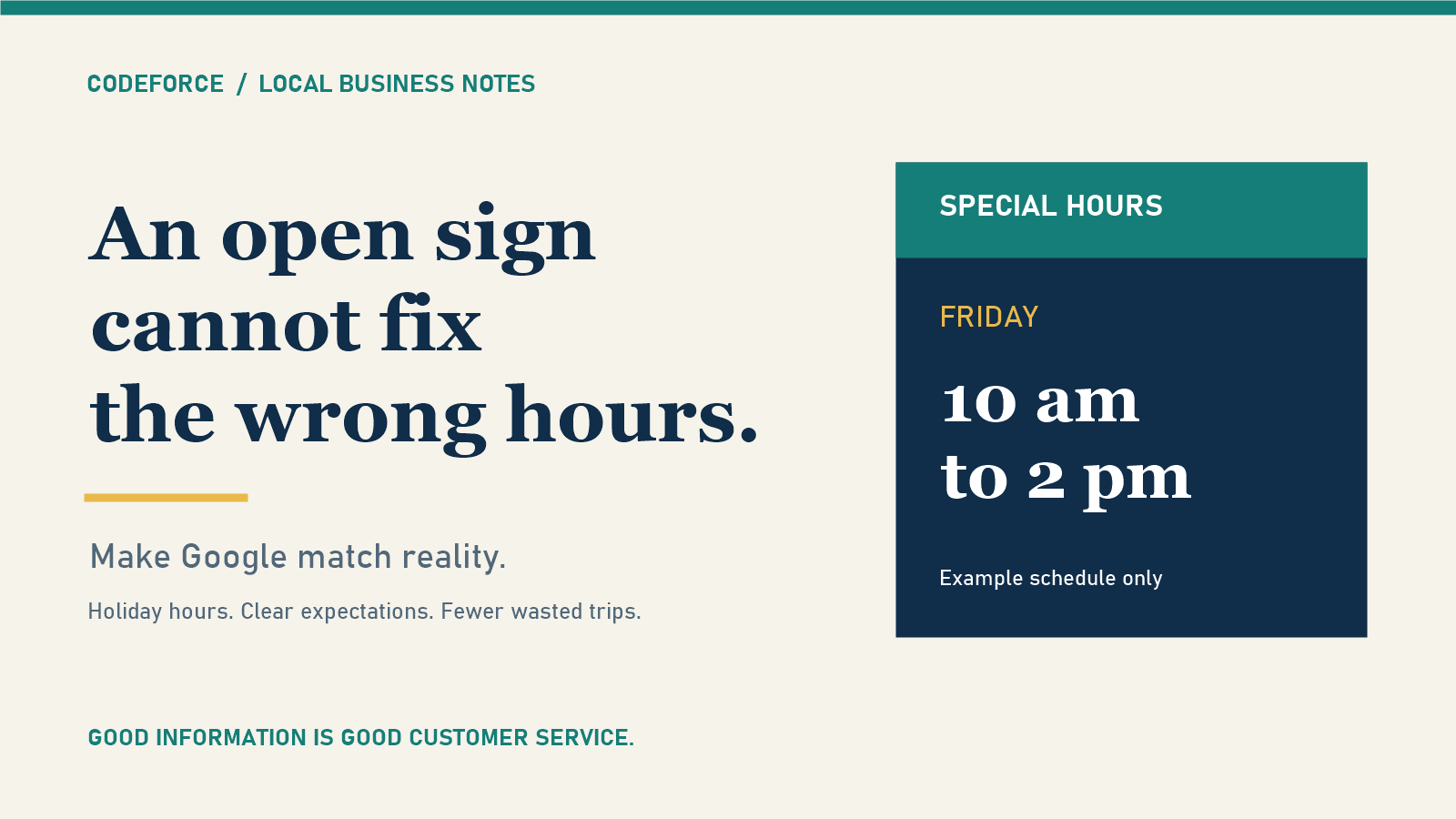
A useful notice answers three questions: which date is different, what the customer can do, and when normal service resumes. “Holiday hours apply” does not answer any of them. A clear example would be: “Friday pickup: 10 a.m. to 2 p.m. Regular pickup hours resume Saturday.” Those are illustrative times, not a recommendation for your business.
Review it as a customer, not as the person who edited it
After saving changes, view the public profile on your phone. Follow the website link. Try the booking or ordering path without completing a real purchase. Read the confirmation wording and notice where a customer could still misunderstand your availability.
Ask another team member to interpret what they see without coaching. If they cannot tell whether pickup is available on the affected day, the message needs work even if every field technically saved.
This is also a chance to notice an outdated address, a broken booking link, or a contact form that says “success” without reaching the right inbox. Our guide to testing website form delivery explains why the final customer outcome matters more than the success message.
Make it a repeatable habit after the rush
Assign someone to review the next exception before the next promotion goes out. Revisit website banners after the dates pass, so a December visitor does not get a November warning. Keep the approved schedule in the same place each time, and make sure a backup person knows how to update it.
The goal is not to make every platform look identical. It is to make every customer-facing promise compatible with the way your business will actually operate.
Need help lining it up? CodeForce can help review your Google Business Profile and the website or booking path behind it. Tell us what is changing, and we can discuss the updates you need. No ranking or sales guarantee, just practical work to remove avoidable confusion.
Sources reviewed November 17, 2026. Google interface labels and availability can change; use the linked official instructions for current details.

