
CodeForce Tech Notes
How To Spot A CAPTCHA Scam Before It Installs Malware
The FTC says fake CAPTCHA prompts can trick people into running commands that install malware. Here is how to spot the scam and what to do if it already happened.
A CAPTCHA scam looks familiar on purpose. That is why it works. The FTC says fake CAPTCHA prompts are showing up in ways that resemble the verification tests people already know. The difference is what happens next. Instead of asking someone to click pictures or type letters, the scam can push them toward steps that install malware on their own device.
The result is not just an annoying fake pop-up. It can turn into account theft, stolen passwords, or access to shopping, email, and banking sessions. That makes the CAPTCHA scam worth treating as a serious security issue, not a minor web annoyance.
What the FTC says the CAPTCHA scam looks like
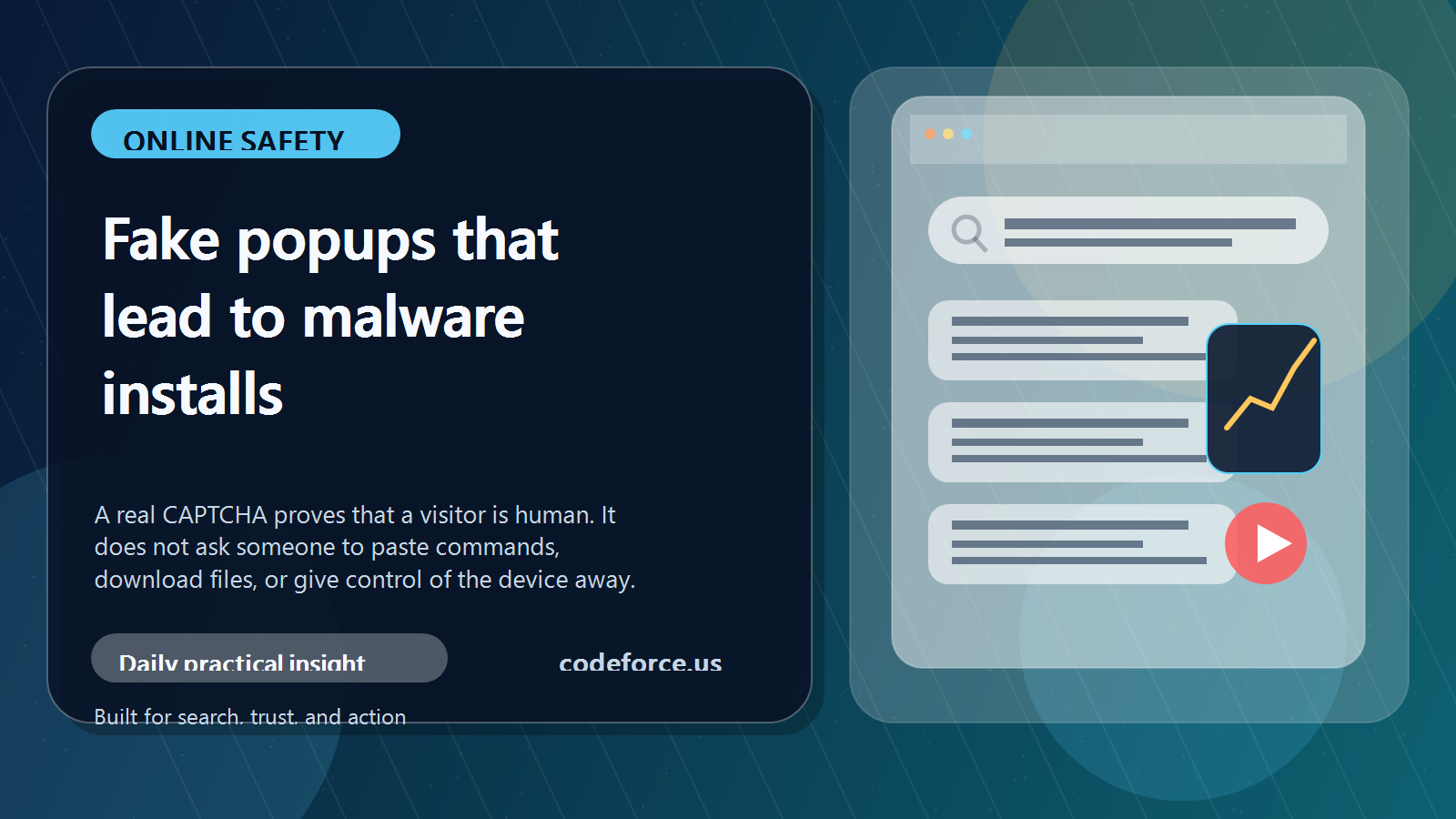
The FTC says real CAPTCHAs ask visitors to complete simple image or text tasks to prove they are not a robot. A CAPTCHA scam imitates that familiar moment, but then pushes the person toward something different. The scam may tell someone to copy and paste commands, download a file, or follow device-level instructions that a legitimate CAPTCHA would never require.
That is the key line to remember: real CAPTCHAs do not ask people to run commands on their device.
Why the CAPTCHA scam works so well
People are used to verification steps. They see CAPTCHAs on shopping sites, sign-in pages, forms, and account security flows. That normalizes the interaction. When a fake prompt appears, many people assume it is part of a routine security check. The design may look close enough to the real thing that they keep going without stopping to question it.
Scammers take advantage of that habit. They also rely on speed. The faster someone clicks through, the less likely they are to notice that the instructions are wildly out of place.
Red flags that point to a CAPTCHA scam
If a prompt does any of the following, stop immediately:
- It asks you to paste text into a system window or command box.
- It triggers a download after a supposed verification step.
- It tells you to install a browser extension, certificate, or software update as part of the CAPTCHA.
- It tries to rush you by claiming the device is infected or locked.
- It appears on a page that already feels broken, off-brand, or suspicious.
A CAPTCHA scam often stops looking like a normal CAPTCHA the moment someone reads the instructions carefully.
What to do right away if you already clicked through
The FTC gives practical next steps if a fake CAPTCHA may have installed malware:
- Disconnect from the internet so the attacker has a harder time maintaining access.
- Run a security scan and update security tools to help catch and remove the malware.
- Change passwords for important accounts.
- Enable two-factor authentication using a different device in case the affected device is already compromised.
Those steps matter because the damage from a CAPTCHA scam often comes after the initial click. The pop-up is just the start.
Why businesses should care about the CAPTCHA scam too
The CAPTCHA scam is not only a personal device problem. It can be a business problem fast. A staff member who clicks the wrong prompt on a work device could expose shared email, stored passwords, cloud drives, customer records, shopping accounts, or admin dashboards. Small organizations are especially exposed because one compromised browser session can touch a lot of systems at once.
That is why it helps to treat this like a team habit issue, not just an individual mistake. A business that gives people a simple rule such as “No real CAPTCHA asks you to run commands” is already safer than a business that never says it out loud.
A simple team rule that prevents expensive mistakes
If a verification prompt asks for anything beyond clicking, typing, or checking a box, stop and verify before doing anything else. That single rule covers a lot of ground. It slows people down at the right moment and creates a clean pause before malware gets installed.
Teams can also add a short checklist:
- Close the page if the instructions feel unusual.
- Do not paste unfamiliar text into system windows.
- Do not approve downloads tied to a CAPTCHA step.
- Ask a supervisor or tech contact before continuing on a work device.
FAQ about the CAPTCHA scam
What is a CAPTCHA scam?
A CAPTCHA scam is a fake verification prompt designed to trick someone into installing malware or giving away access to their device or accounts.
How can someone tell a real CAPTCHA from a fake one?
A real CAPTCHA asks for a simple human-verification task. A fake one starts asking for device-level actions, downloads, or pasted commands.
Can a CAPTCHA scam affect business accounts?
Yes. If a staff member uses a work device, browser, or shared account, a fake CAPTCHA can become a business security problem quickly.
What should happen after a suspicious CAPTCHA?
Disconnect, scan the device, change passwords, and turn on two-factor authentication from a separate trusted device.
Bottom line
The CAPTCHA scam works because it borrows the look of a normal web safety step while slipping in instructions that should never be part of normal verification. Reading the prompt carefully is often enough to catch it. Real CAPTCHAs do not ask people to run commands or install anything.
When a prompt crosses that line, stop there.
For more practical online safety guidance and site cleanup help, visit CodeForce.

